
Email Inbox Now in OneSuite: Simplify Client Communication

Hello Everyone,
We’re excited to introduce Email Inbox in OneSuite, a feature that connects your Gmail or Microsoft Outlook account directly to the platform, so your team can send and receive client emails without ever leaving your workspace.
For agencies and service teams, a large portion of client communication occurs via email. But the current reality for most teams is that email lives in a completely separate place from everything else: your projects, your CRM, your invoices. You’re constantly switching tabs, searching for threads, and losing context along the way.
With this update, OneSuite brings your inbox into the platform. Every email you send and receive with clients is now accessible directly inside their CRM records, no switching, no searching, no lost context.
Let’s walk through everything included in the Email Inbox feature in OneSuite.
Why We Built This
Most agency workflows look something like this: a client sends an email to your Gmail, you respond there, then you go back to OneSuite to update the project or CRM. Later, a teammate asks what’s happening with that client, and you have to go back to your inbox, search by their email address, dig through threads, and then relay that information manually.
It’s a constant back-and-forth between two separate systems that should really be talking to each other.
We kept hearing the same feedback from agencies: email is where most client conversations actually happen, but it’s completely disconnected from the tools where work gets done.
That’s why we built Email Inbox directly inside OneSuite.
Now, instead of jumping between your inbox and your platform, everything lives together. You can communicate with clients from inside their CRM record, and every email thread — sent or received — stays attached to the right contact automatically.
The result is less context switching, better team visibility, and a much cleaner client communication record.
Connect Your Gmail Account
This is where the whole thing starts.
Setting up the Gmail integration takes just a few minutes. Once connected, OneSuite uses your Gmail account to send and receive emails on your behalf right from inside the platform.
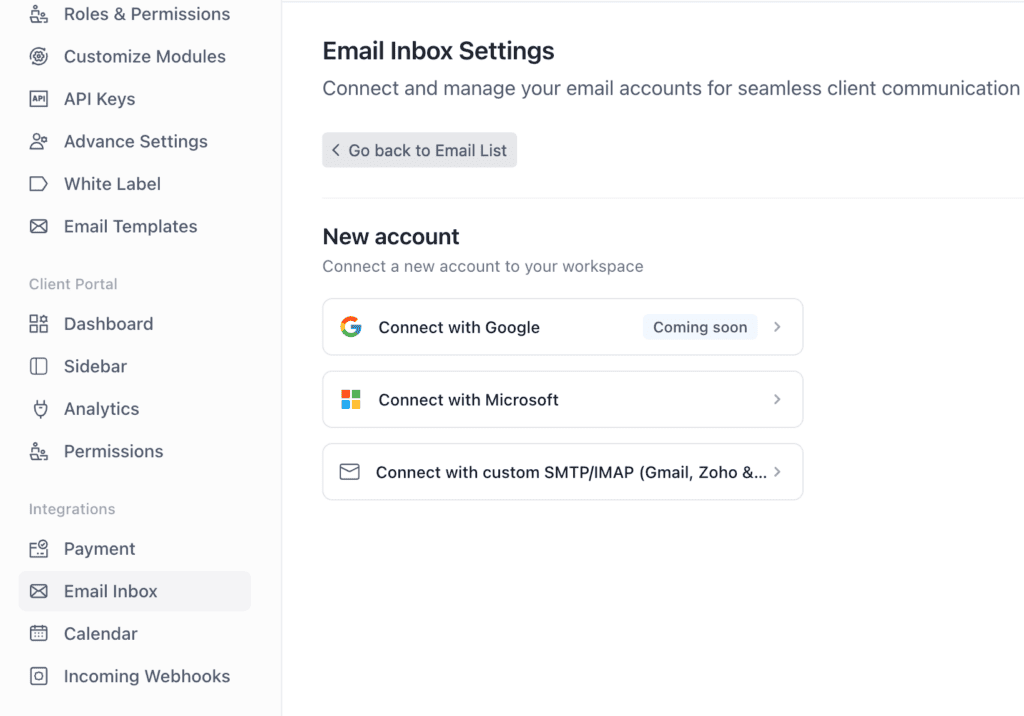
Here’s what the setup looks like:
- Go to Integrations from the main menu and open Email Inbox
- Select Gmail as your provider
- Enter your Gmail address and App Password
- Save — and you’re connected
The only thing to be aware of is that Google requires an App Password rather than your regular Gmail password for third-party integrations. It takes about a minute to generate — you go to your Google Account, search for App Passwords, create one named something like OneSuite Inbox, and paste the 16-character code into OneSuite.
That’s it. No complex configuration, no developer setup. Just a quick connection that makes a real difference in your daily workflow.
Connect Your Microsoft Outlook Account
If your team runs on Microsoft Outlook, the integration works just as seamlessly.
You connect through Microsoft’s standard authorization flow — select Outlook as your provider, click Connect with Microsoft, sign in, and grant permissions. Once authorized, your Outlook account is live inside OneSuite.
What makes the Outlook integration particularly useful:
- Contact import — During setup, you can choose to import your existing Outlook contacts directly into OneSuite’s CRM. Up to 3,000 of your most recent contacts are automatically imported.
- Automatic company matching — If a contact belongs to a company, OneSuite will create the Company record automatically and connect the right people to it.
- Optional — The contact import is completely optional. You can connect Outlook without importing a single contact if you prefer to manage your CRM manually.
Whether your team uses Gmail or Outlook, both integrations give you the same result: a fully connected email experience built into your workspace.
Send and Receive Emails from CRM Records
This is the part that changes the daily experience the most.
Once your inbox is connected, every People, Companies, and Clients record in OneSuite gets an Email tab. Open any contact, and their entire email history with your team is right there — no searching, no switching.
Here’s what you can do from any CRM record:
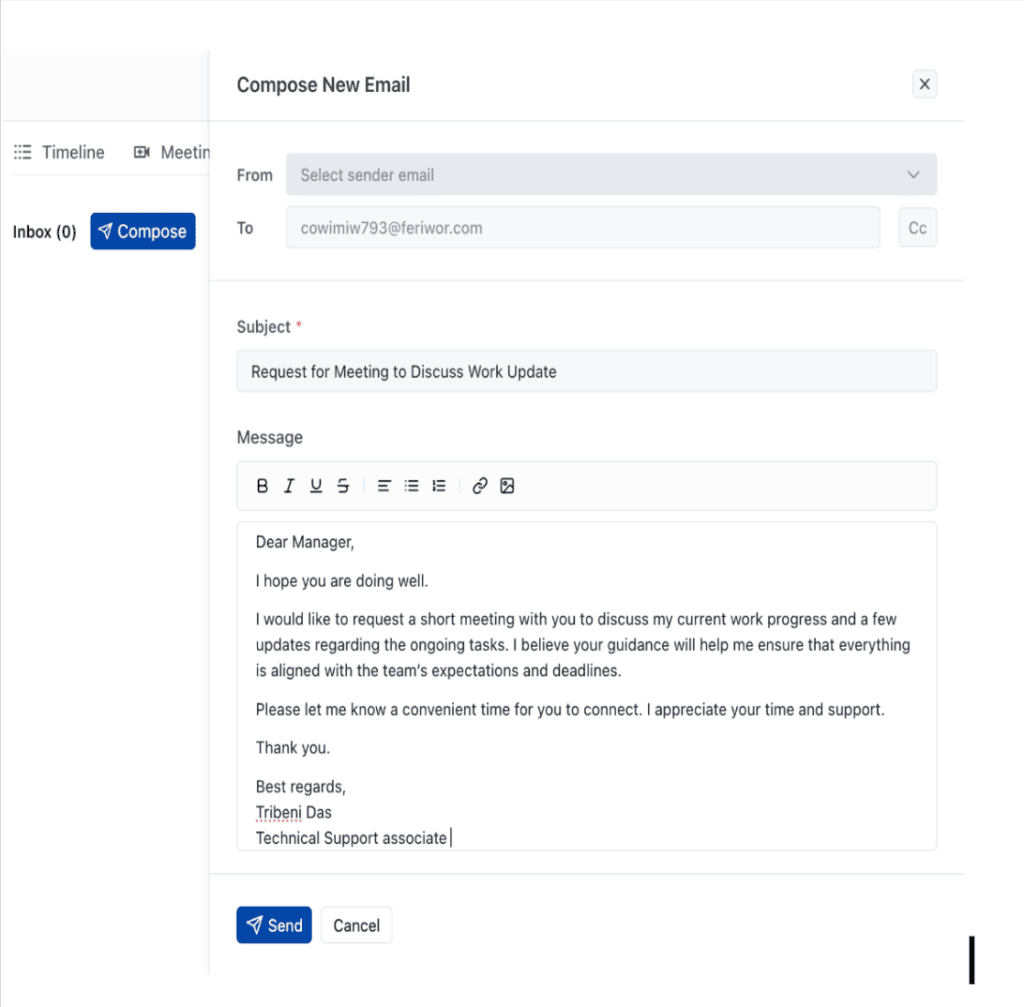
- Click Compose to start a new email directly from the contact’s record
- Choose which connected email address to send from — useful if your team has multiple accounts connected
- Add up to 5 CC recipients when a conversation involves multiple stakeholders
- Write your message from scratch or pull in a saved template with one click
- Send — and the email goes out through your connected Gmail or Outlook account
On the receiving side, when a client replies or sends a new email to your connected inbox, it automatically surfaces inside their record in OneSuite. Your team can see the full conversation history in context, without anyone needing to forward threads or copy-paste email content into the platform.
The result is a single view of every client relationship — projects, invoices, proposals, and now email — all in one place.
Save Time with Email Templates
If your team sends recurring types of emails — onboarding messages, project updates, payment reminders, follow-ups — you no longer need to rewrite them each time.
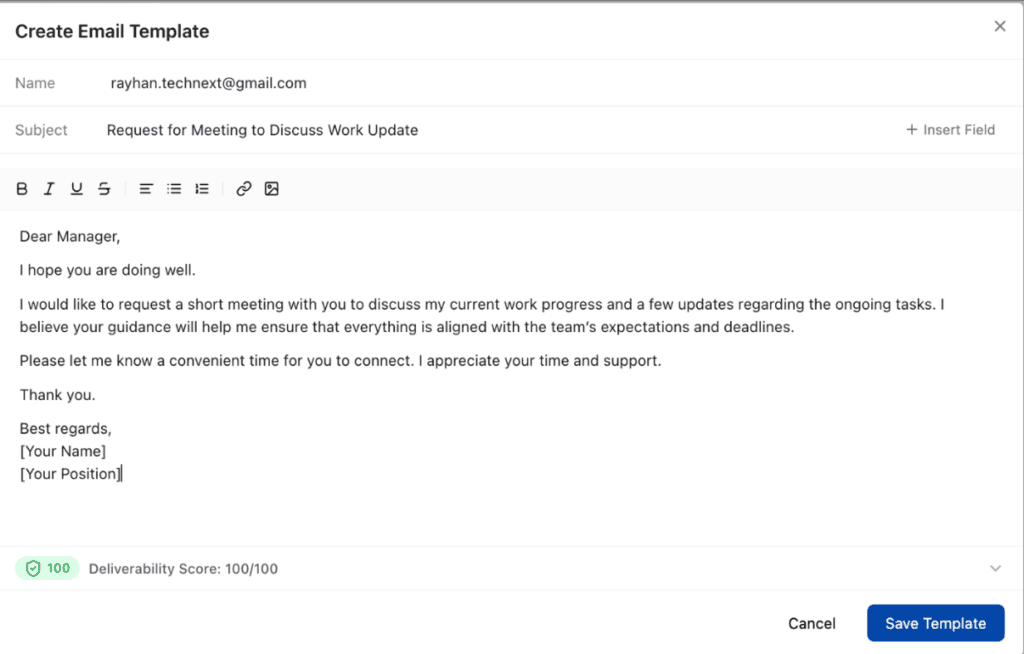
OneSuite’s Email Templates let you create reusable drafts with dynamic fields that automatically fill in client-specific details like name, company, and other CRM data when you compose an email.
Setting up templates is straightforward:
- Go to General Settings and navigate to Inbox Space
- Open Email Templates and create a new one
- Write the email body and insert dynamic fields wherever personalisation is needed
- Save — the template is now available across your entire team
When composing an email from a CRM record, simply select the template from the dropdown and OneSuite fills in the variables automatically. Review, adjust if needed, and send.
For teams handling high volumes of client communication, templates alone can save a meaningful amount of time each week.
What the Workflow Looks Like Now
With Email Inbox integrated into OneSuite, client communication becomes a natural part of your existing workflow rather than a separate process you manage elsewhere.
The process now looks like this:
Connect Your Inbox: Link Gmail or Outlook through Integrations in just a few minutes.
Open a Client Record: Navigate to any People, Companies, or Clients record in the CRM.
Compose or Receive: Send emails directly from the record, or view incoming messages as they arrive.
Use Templates: Speed up recurring communication with saved templates and dynamic fields.
Stay in Context : Every email thread lives alongside the client’s projects, invoices, and documents — no switching required.
What This Improves for Teams
This update is built to eliminate one of the most common sources of friction in agency workflows — the constant gap between where communication happens and where work gets done.
Key improvements include:
- No more inbox searching — client emails are accessible directly from their CRM record, not buried in a Gmail thread
- Better team visibility — everyone on the team can see client communication history without asking who sent what
- Faster responses — compose and reply from inside OneSuite without switching tools or losing your place
- Cleaner CRM data — Outlook contact imports automatically populate People and Companies, reducing manual data entry
- Time saved on repetitive emails — templates with dynamic fields eliminate rewriting the same messages over and over
The goal with all of this is simple: your team should spend less time managing communication logistics and more time actually delivering for clients.
Email Inbox is available now. Connect your Gmail or Outlook account from Integrations and start communicating with clients directly from OneSuite.
Stay tuned — this journey is just beginning.
Find a Better Way to Grow
OneSuite streamlines projects, clients, and payments in one place, making growth hassle-free.