
OneSuite June 2026 Update: Reusable Templates, a Smarter Client Portal, and a Lot Less Busywork

July 7, 2026
What if setting up a new project took seconds instead of an afternoon?
What if your clients could upload their own files, book their own meetings and find everything in one place without a single back-and-forth email? 🎉
That is exactly what this month’s update is all about.
June was one of our biggest months yet. We shipped major improvements across projects, the client portal, email, CRM, scheduling and the overall experience. All of it built to help you spend less time on admin and more time doing the work that actually matters.
Here is everything that is new.
What’s New in Projects?
Projects are easier to set up, manage and customize in this update.
The new improvements are designed to help your team save time, keep project structures consistent and organize work in a way that fits your process.
Three updates matter most: project custom fields,project templates, improved Kanban and List views.
When to Use Project Templates
Project templates work best for projects that are repeatable, standardized or managed by multiple team members.
- Repeatable projects: your team regularly runs the same type of work, such as website projects, campaigns or content planning
- Standardized processes: each project needs to follow the same tasks, stages or internal workflow
- Team consistency: different team members need to start and manage projects using the same structure
📌 A good rule of thumb: if your team has created the same project setup more than once, it is worth saving it as a template.
Project Templates
Project templates help you start repeatable work without rebuilding the same structure every time.
You can create templates with predefined tasks, workflows, custom fields and project structures. Once a template is ready, your team can use it whenever they start a similar project.
Starting a new campaign, sprint or client project?
Pick the right template and begin with everything already organized. This helps your team move faster while following the same process every time.
OneSuite also includes 40+ ready-to-use templates to help you get started, including:
- Campaign Launch
- Editorial Calendar
- Sprint Planning
- Bug Triage
- Design Sprint
- Website Redesign
- And many more
A good rule of thumb: if your team has created the same project setup more than once, it is worth turning it into a template.
Custom fields can also be added directly to templates, so every new project starts with the right structure from day one.
Improved Kanban and List Views
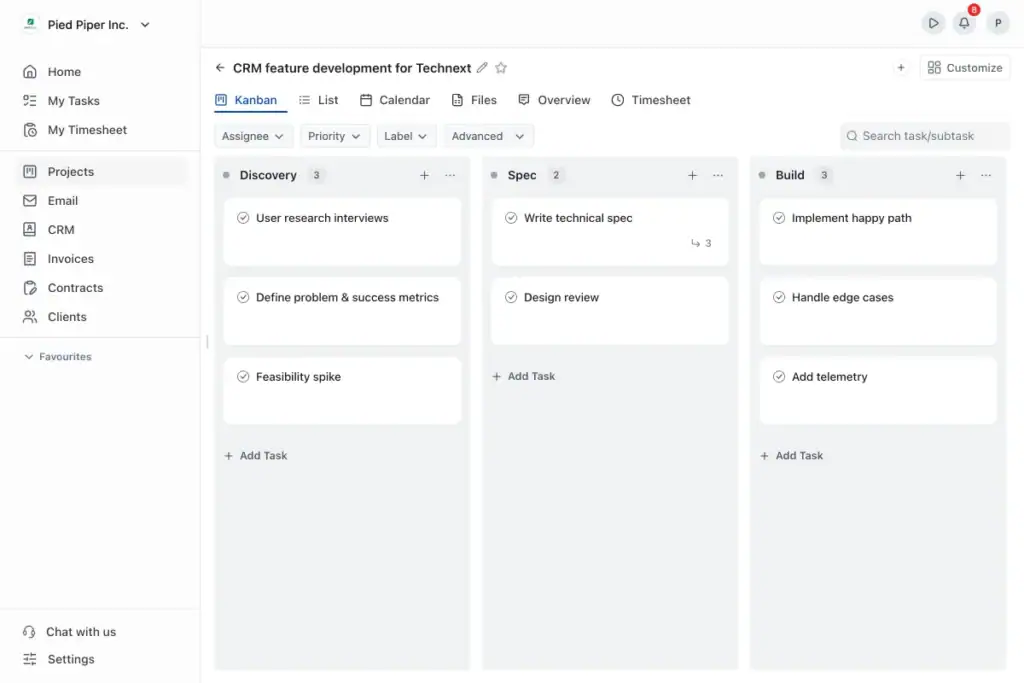
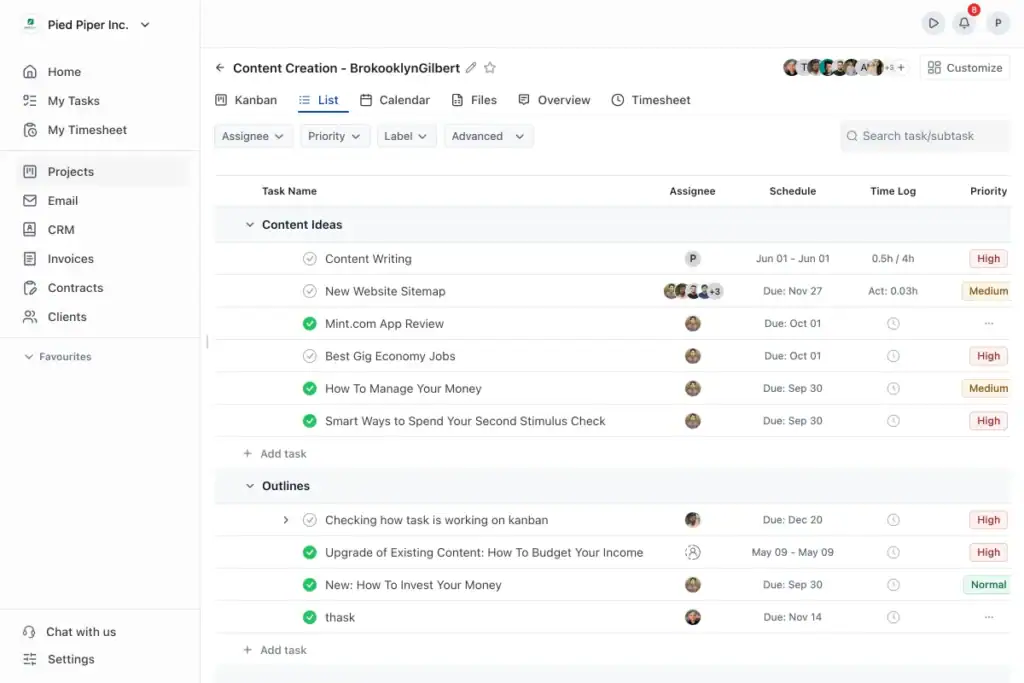
The Kanban and List views have been redesigned to make everyday project management cleaner and easier.
You can now move between Kanban, List, Calendar, Files, Overview and Timesheet views from one clear navigation area.
Filters for assignee, priority, label and advanced options are also easier to access, helping you find the right tasks without searching through the entire project.
The updated layout makes it easier to:
- Navigate projects: switch between different project views without losing context
- Find tasks faster: filter work by assignee, priority, label and other criteria
- Organize work clearly: create sections and structure tasks around your workflow
- Track progress: understand what is being worked on and what needs attention
The Projects module has also been optimized for faster loading and a smoother experience across both Kanban and List views.
Custom Fields for the Way You Work
Every team tracks project information differently.
Custom fields let you add the exact details your team needs inside a project. Go to a project, click Customize, open Custom Fields, then add a new field.
OneSuite supports nine custom field types:
- Text
- Number
- True/False
- Date
- Select
- Multi-select
- Rating
- Currency
- Link
You can use custom fields to track things like priorities, budgets, approval status, campaign channels, sprint points, client links or any other project-specific information.
Custom fields can be added to individual projects or included inside project templates for repeated use.
This means every project can start with the same structure, fields and information your team already depends on.
A Smarter, More Powerful Client Portal
The client portal has been improved to make collaboration easier for both your team and your clients.
Clients can now upload files, access shared folders and book meetings directly from their portal. This helps reduce back-and-forth emails and gives clients one clear place to find what they need.
Clients Can Now Upload Their Own Files
Clients can now upload and share files directly through the OneSuite Client Portal.
This makes it easier to collect documents, creative assets, briefs, reports, reference materials and other project files without searching through email threads.
Your client knows where to upload the file. Your team knows where to find it.
Connect Google Drive or OneDrive
You can now connect Google Drive or Microsoft OneDrive to OneSuite and assign a specific folder to each client.
The client only sees the folder assigned to them. They cannot access the rest of your Drive or OneDrive storage.
From the portal, clients can view files, upload new files and organize shared materials, while your team continues using the cloud storage structure already in place.
This keeps file sharing simple for clients and organized for your team.
Let Clients Book Their Own Meetings
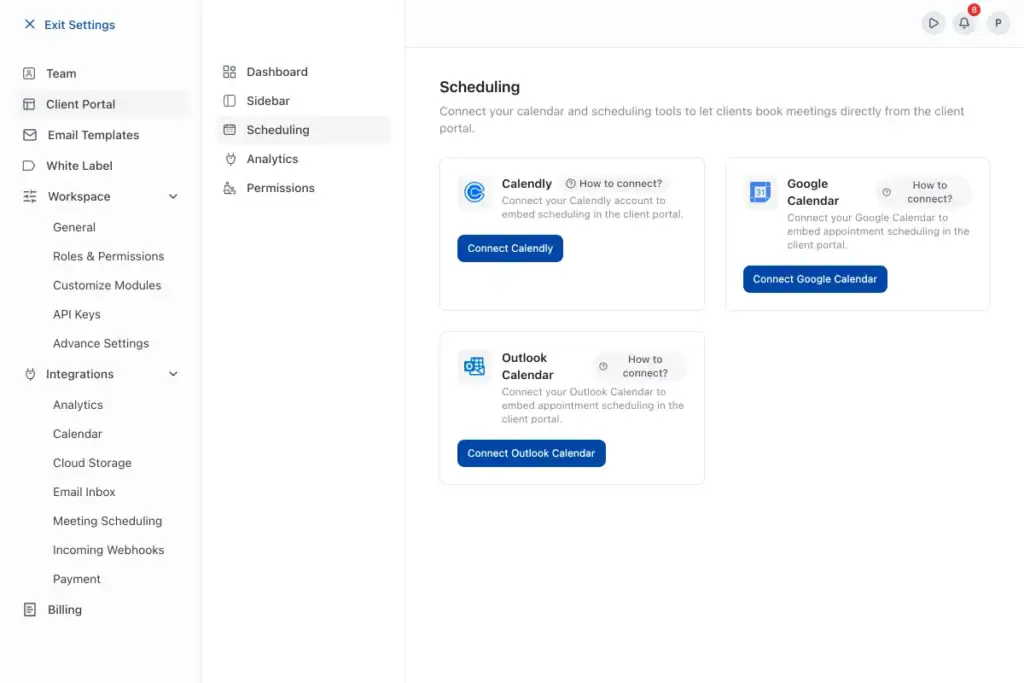
Clients can now book meetings directly from their portal using Calendly, Google Calendar or Microsoft Outlook scheduling.
Instead of sending scheduling links again and again, you can make meeting availability available inside the client portal.
The client logs in, checks your available times and books a meeting.
📌 A good rule of thumb: if your client usually needs to email you to upload a file, find a document or book a meeting, it probably belongs inside the client portal.
Your Inbox and Email, Now Connected
Client communication is easier when your inbox and client records work together.
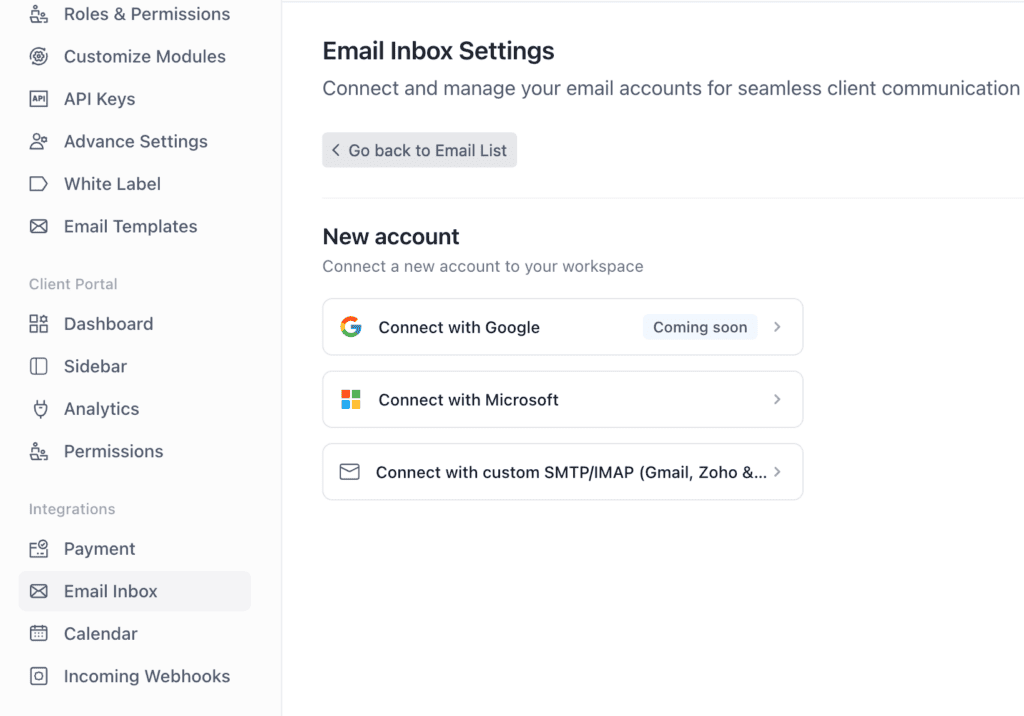
OneSuite Email Inbox now supports both Gmail and Microsoft Outlook.
Once your email account is connected, you can choose a client and send emails directly from OneSuite. No need to switch between your inbox and your client management workspace.
Every conversation stays connected to the right client record, so your team can find client emails faster and keep communication more organized.
Smarter CRM: Automatic Opportunity Naming
Creating opportunities manually can slow your team down, especially when new people are being added to the CRM regularly.
OneSuite now makes this process easier with Opportunity Automation.
When auto-create opportunity is enabled, OneSuite can automatically create a new opportunity when a person is added inside the CRM. You can also choose how that opportunity should be named, so every new record follows the same structure from the start.
You can select from ready-made naming formats such as:
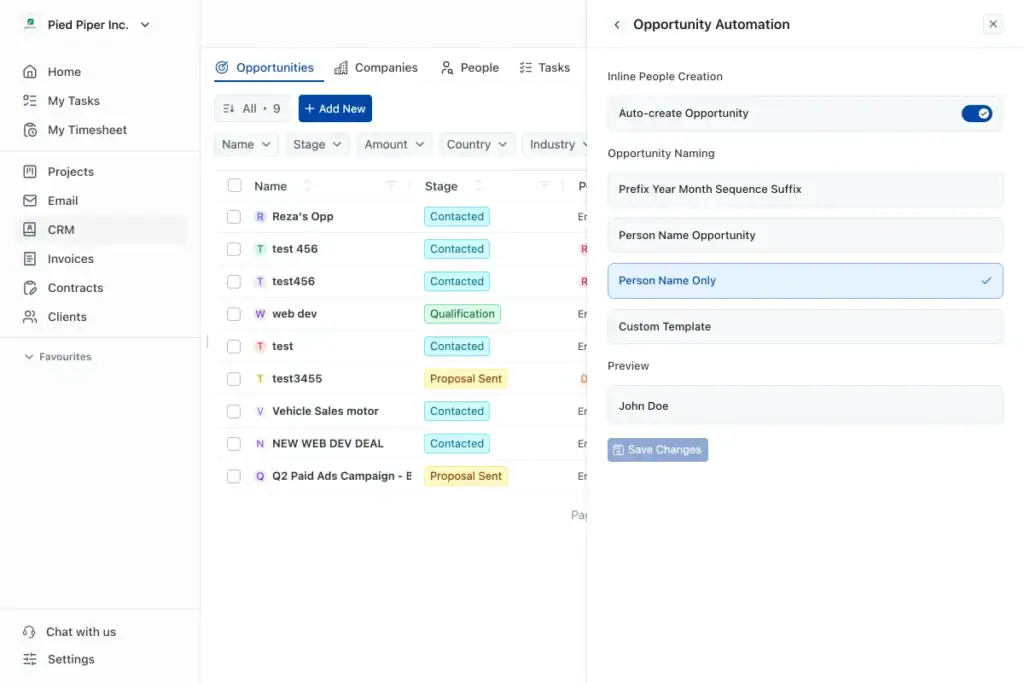
- Prefix, year, month, sequence and suffix
- Person name with opportunity
- Person name only
- Custom template
A live preview shows exactly how the opportunity name will look before you save the setting.
This helps your CRM stay cleaner, more consistent and easier to manage as your pipeline grows.
A good rule of thumb: if your team creates opportunities from new people regularly, automate the naming once and let OneSuite keep it consistent every time.
A Few More Improvements
Weekly Calendar in My Tasks
Planning your week is easier when your tasks and schedule live in the same place.
You can now see your weekly calendar directly inside My Tasks, along with your tasks, deadlines, meetings and scheduled activities.
This gives you a clearer view of what is coming up, what needs attention and how your week is shaping up without jumping between different tools.
A Better Dark Mode
Dark mode now feels cleaner, easier to read and more comfortable to use.
We improved the visual balance across OneSuite so screens feel smoother in low-light environments, late work sessions or whenever you simply prefer a darker interface.
Improved Multilingual Experience
OneSuite now offers a more consistent multilingual experience across the platform.
Translations are clearer and more accurate, helping teams and clients from different regions use OneSuite more comfortably in their preferred language.
Join Our Upcoming Webinar
OneSuite: The Vision, the Roadmap, the Possibilities July 8th · 10 AM EST / 3 PM BST / 5 PM EEST
Join us live for a walkthrough of where OneSuite is headed, a look at what is coming next, and a Q&A session to answer your questions.
What We’re Working On Next
We are continuing to build OneSuite around one simple goal: making it easier to manage your clients, work, billing and service delivery from one connected workspace.
The next updates will bring more flexibility to invoices, subscriptions, payments and productized services.
Here is what is coming soon:
- Invoice templates
- Subscription management
- More payment integrations
- Productized services
- More workflow and client management improvements
Updates may roll out gradually, so if you do not see everything in your workspace yet, it is on the way.
Thank you for being part of the OneSuite journey.
We are constantly improving OneSuite to help you manage clients, projects, communication, files and payments from one connected workspace.
More exciting updates are coming soon. Stay tuned. 🚀
OneSuite: One place. Better client experience.
Start exploring OneSuite today
No credit card is required