OneSuite October Update: Getting Paid Just Got Easier

November 12, 2026
“Did the retainer come through?”
“Let me check Stripe. And the bank. And my email.”
That conversation happens in a lot of agencies on the 1st of every month. October’s update is built to end it.
The biggest updates this month are about money. Subscriptions now charge saved cards automatically, and OneSuite connects 20 payment providers, including Stripe, Square, Mollie, Revolut and GoCardless. Invoices, time tracking, reports and projects picked up upgrades too.
So grab your coffee. ☕
Key Takeaways
- Set up recurring billing plans and charge saved cards automatically.
- Connect 20 payment providers, each with a step-by-step setup guide.
- Accept online payments on recurring invoices and send receipts automatically.
- Select and manage hundreds of invoices at once with bulk actions.
- Control your timer from the top bar, and build, save, share and export custom reports.
Love From Our Users
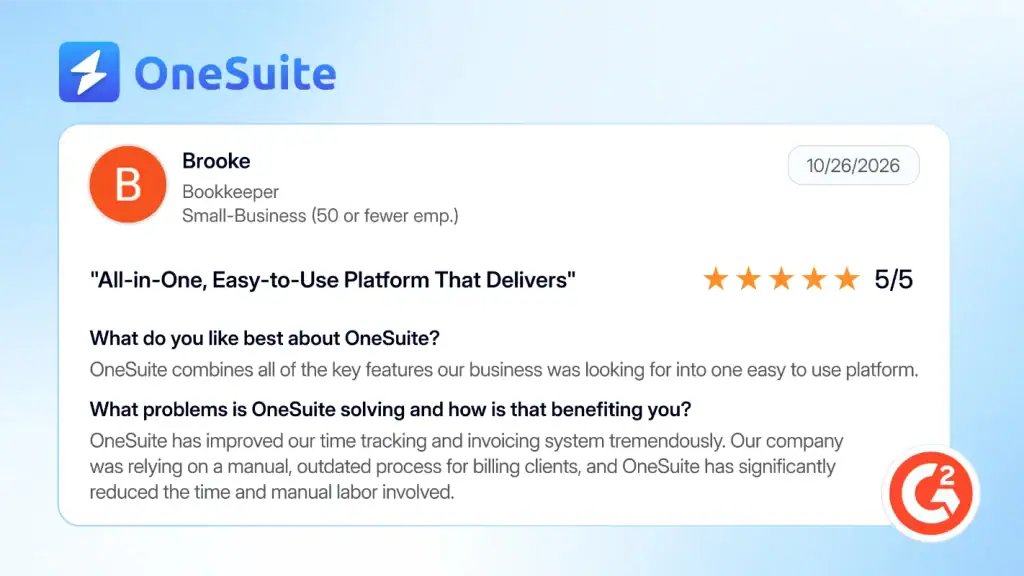
October was about getting paid, so here is what one customer says about billing with OneSuite.
Brooke, a bookkeeper at a small business, left a 5/5 review on G2. She says OneSuite “has improved our time tracking and invoicing system tremendously,” and that it significantly reduced the time and manual labor involved in billing clients.
Subscriptions: Recurring Billing That Charges Itself
Monthly retainers are the easiest revenue to lose track of. The work is agreed and the price is fixed, yet the payment still depends on someone sending an invoice and someone else remembering to pay it.
Not anymore. With Subscriptions, you create a recurring billing plan once, and OneSuite charges the client’s saved card automatically.
No card on file yet? Request a payment method from the client in one click.
Here is what changes:
- Less monthly admin. Set the plan up once instead of billing the same client again every month.
- No waiting on reminders. Saved cards are charged automatically.
- A card on file takes one click. Ask the client for a payment method and let them add it.
Use it for any client you bill the same way every month, such as retainers and ongoing support.

20 Payment Providers, With Setup Guides
Clients pay the way they already pay, and it is rarely the same for everyone. One prefers a card, another a bank, another a wallet. The invoice only gets paid on time if paying it is easy.
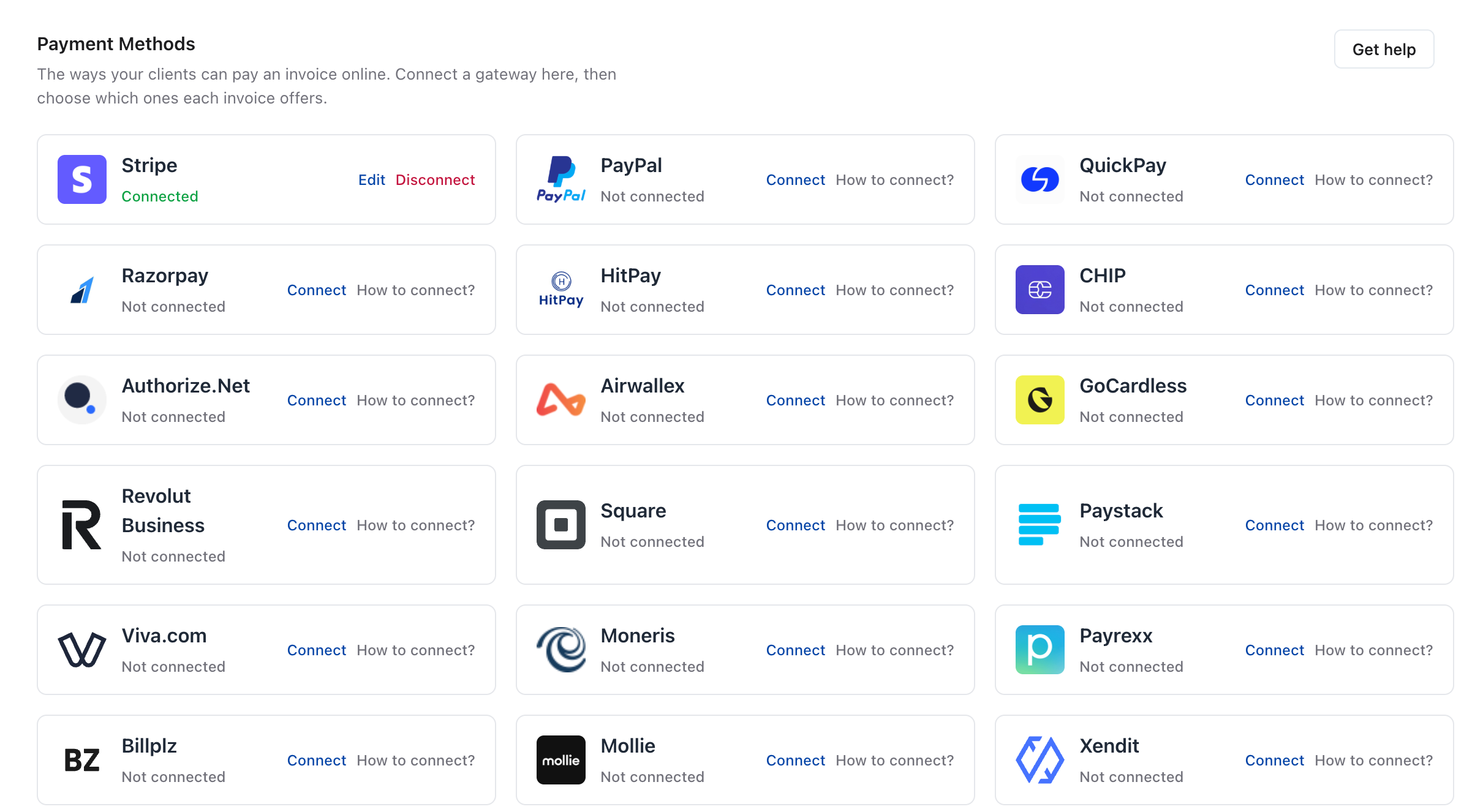
OneSuite now connects 20 payment providers, including Stripe, Square, Mollie, Revolut and GoCardless. Each one has a step-by-step setup guide, so you follow the steps instead of working it out alone.
What that means:
- More ways to get paid. Choose from 20 providers, including Stripe, Square, Mollie, Revolut and GoCardless.
- Setup without guesswork. Every provider comes with a step-by-step guide.
- Meet clients where they pay. Connect the provider your clients already use.
Get Paid Faster: Online Payments and Receipts
Accept Payments on Recurring Invoices and Retainers
Sending a recurring invoice is the easy part. Getting it paid is where the follow-up starts, especially when part of the money is already sitting in a retainer and the rest arrives by bank transfer.
OneSuite now handles all three:
- Pay recurring invoices online. Clients can settle them without waiting for a reminder.
- Apply prepaid retainer balances. Money a client paid up front goes against the invoice.
- Track pending bank transfers. See which payments are on their way.
Automatic Payment Receipts
“Did you get my payment?”
Every client asks it. Now the answer is already in their inbox, because OneSuite sends payment receipts automatically.
Two small extras help here. You can attach files to invoice emails, and copy up to three additional email addresses. That covers the client who always needs a finance contact in the loop.
Manage Thousands of Invoices Without the Scroll
Invoice lists do not stay small for long. Past a few hundred, one lookup or one batch fix starts to cost real time. Four changes in October cut that down.
Search, Filter and Sort Instantly
Finding one invoice among thousands should not mean scrolling and guessing.
You can now search, filter and sort thousands of invoices instantly. Actions are faster, navigation is improved, and the layout is mobile-friendly, so a quick check works on a smaller screen too.
Bulk Invoice Actions
Changing invoices one at a time stops making sense at a few hundred.
You can select hundreds of invoices across pages and manage them together. A bulk operation shows its progress, and you can cancel it when needed.
Invoice History and Estimate Links
When a client questions an invoice, you need the full story fast.
Each invoice now has a complete activity timeline. It also stays connected to the estimate it came from, so you can trace a bill back to the original quote.
Map Line Items to QuickBooks Accounts
Not every charge belongs in the same account.
You can map different invoice line items to specific QuickBooks accounts, which gives you more accurate financial tracking.
If you send a lot of invoices every month, this section is for you. See how invoicing in OneSuite works.
[Screenshot needed: invoice list with bulk selection]
Where Billable Hours Go Missing (and How to Find Them)
Hours only turn into revenue when they are tracked and then billed right. October improves both ends.
Resume Entries and Control Your Timer From the Top Bar
Starting a timer is easy. Fixing it while it runs, or finding it again later, is where hours go missing.
You can resume an existing time entry and edit a running timer. You can also manage your active timer from the top navigation bar.
Control What Appears on Invoices and Preview Rate Changes
Clients read the invoice, not your timesheet, so what shows up on it matters.
You can customize the time entry details that appear on invoices.
Rates change too, and one change can reach a lot of billing. You can preview the impact of a rate change before you commit to it, and view scheduled team rate updates.
If you bill by the hour, start here. Learn more about time tracking in OneSuite.
[Screenshot needed: timer in the top navigation bar]
Reports That Answer Your Questions, Not Ours
Standard reports answer standard questions. Your agency has its own.
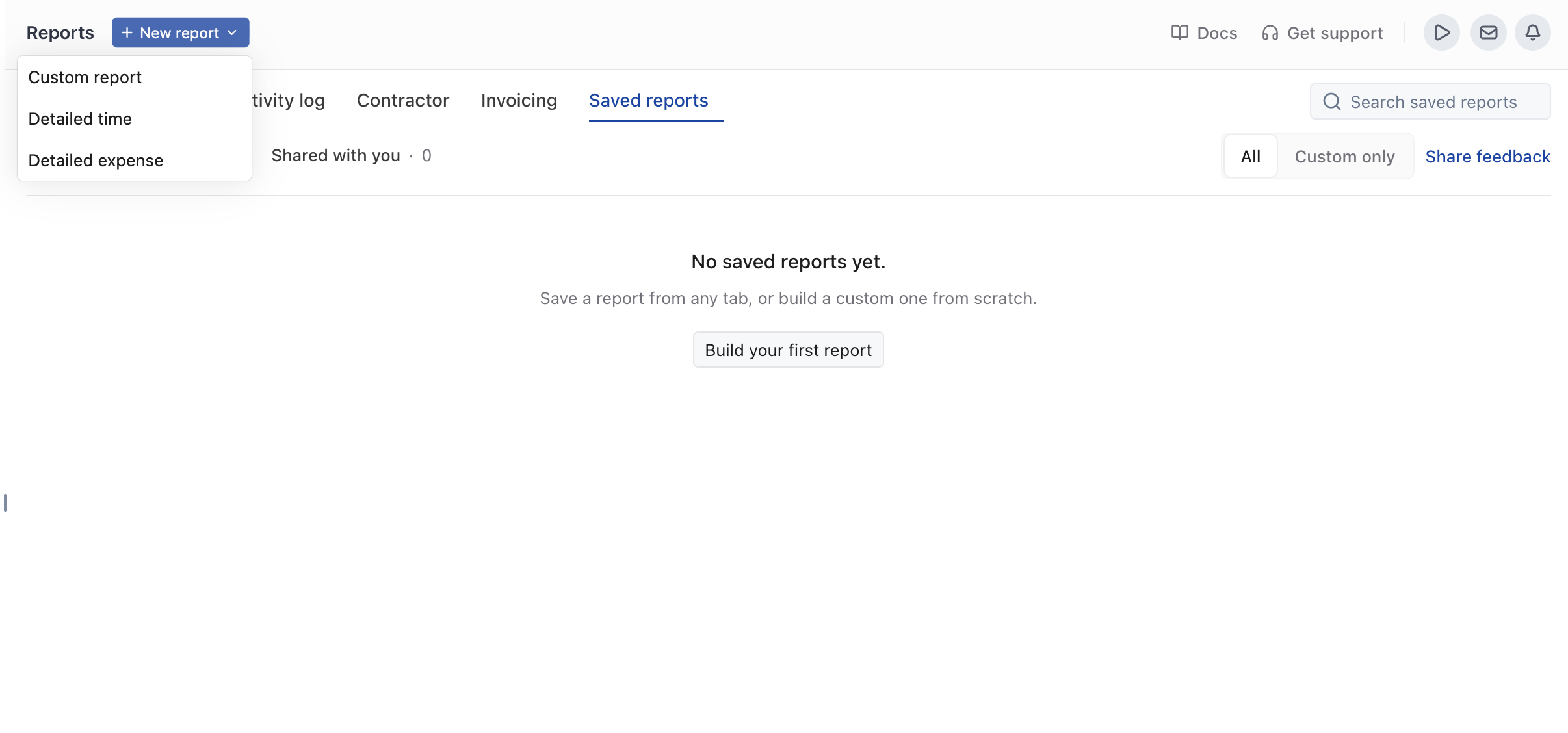
Build reports with custom fields and filters, and keep them close:
- Custom fields and filters: Shape a report around the question you are asking.
- Save, pin and share: Keep the reports you use often within reach and share them.
- Export: Export reports to CSV. [EDITOR: confirm Excel export is live before adding it.]
Task Reports add one more view. They show the time spent on individual tasks, so you can see where a project’s hours went and better understand progress and team productivity.
Small Fixes You’ll Notice Every Week
Small changes, but the kind you notice every week.
- Search by project code: Find a project using its code.
- Duplicate with budgets: Copy a project along with its existing budget.
- Budget alert recipients: See who receives budget alert notifications.
- Multi-currency expenses: Add expenses in different currencies to invoices.
- Expense reports: View mileage and dates in expense reports.
Additional Improvements
- Team management: Invites are validated better, and required permission dependencies are assigned automatically.
- Client management: Quickly access client contact details, preview and correct bulk imports, and load client portal billing pages faster.
- Onboarding: New users get a welcome video and a celebration at their first milestone.
- Languages: Expenses, timesheet approvals and reports are available in every supported language.
- Performance: Pages load faster and navigation is smoother, with proactive issue monitoring.
- Help and support: Documentation and customer support are available from the top navigation bar.
What We’re Working On Next
These are not live yet. Here is what is coming:
- Forms: Create client intake, project brief, support request and onboarding forms from ready-made templates.
- Client Chat: Communicate with clients and team members in real time, inside OneSuite.
- Invoice Templates: Save your preferred invoice setup and reuse it whenever you bill clients.
- Proposal Builder V2: Build and send professional proposals with a faster, more flexible builder.
Keep an eye on the changelog for each release.
Frequently Asked Questions
What payment providers does OneSuite support?
OneSuite connects 20 payment providers, including Stripe, Square, Mollie, Revolut and GoCardless. Each one comes with a step-by-step setup guide.
Can OneSuite charge a client’s saved card automatically?
Yes. With Subscriptions, you create a recurring billing plan and OneSuite charges saved cards automatically. You can also request a payment method from a client in one click.
Can I export OneSuite reports?
Yes. Reports you build with custom fields and filters can be saved, pinned, shared and exported to CSV. [EDITOR: confirm Excel export is live in the product before adding Excel here.]
Start Exploring OneSuite Today
The fastest way to see October is to try three things in your workspace:
- Set up a recurring billing plan for one retainer client.
- Connect a payment provider using its step-by-step setup guide.
- Open your invoice list and try search, filters and bulk actions.
Next 1st of the month, when someone asks “did the retainer come through?”, the answer is already yes.
New to OneSuite? Start your 14-day free trial. No credit card is required.
Start exploring OneSuite today
No credit card is required