
10 Project Scheduling software Worth Using in 2026

October 14, 2026
Managing projects can feel overwhelming. Deadlines pile up, tasks get overlooked, and keeping everyone on the same page can feel impossible.
The good news is there’s a solution for every team that wants clarity and control.
We’ve put together a list of 10 project scheduling software solutions that actually work in 2026. From trusted favorites to powerful tools with hidden features, this guide will help you plan smarter, track progress effortlessly, and keep your team aligned without the stress.
We kept it short, practical, and easy to follow. No fluff, just the tools that make managing projects simpler and more efficient.
Let’s dive in.
- Plan, organize, and manage tasks across your team efficiently without confusion or missed deadlines.
- Combine team collaboration, time tracking, and reporting in a single platform to keep everyone aligned.
- Choose the right project scheduling tool based on features, usability, and your team’s workflow needs.
- The top scheduling tools help agencies and teams stay on schedule and manage multiple projects effectively.
- Prevent resource conflicts, missed deadlines, and miscommunication between teams with smart scheduling features.
- Streamline project management with integrated tracking, approvals, and automated invoicing to save time.
What Is Project Scheduling Software?
Project scheduling software is a tool that maps every task in a project to a specific date, owner, and duration, then automatically adjusts the timeline when something changes. It turns a list of work into a delivery date you can actually defend.
Every agency has a task list. Very few have an honest answer to the only question clients actually ask: “when will this be done?”
Scheduling software answers that question. It takes work you already know needs doing and places it against real people with real capacity, so a delivery date stops being a guess.
The difference shows up on the day something slips.
In a task list, a missed deadline is one red badge. In a schedule, you instantly see the four tasks stacked behind it, the designer who just became double-booked next Tuesday, and the client call you now need to make today instead of Friday.
How it differs from planning and management
- Project planning answers what needs to happen and why. Scope, goals, deliverables.
- Project scheduling answers when it happens, who does it, and what breaks if it moves.
- Project management is the wrapper around both, adding budgets, tracking, reporting, and client communication.
Most teams outgrow project planning tools not because the list got longer, but because the list stopped telling them the truth about capacity.
What Makes a Great Project Scheduling Tool?
A great project scheduling tool helps teams plan tasks, manage deadlines, allocate resources, and track project progress in one place. It gives a clear view of who is doing what, when tasks need to be completed, and where potential delays may happen.
The best project scheduling tools include these key features:
- Gantt Charts & Timeline Views: Visualize project schedules, task dependencies, milestones, and deadlines. Drag-and-drop timelines make it easy to update plans when priorities change.
- Resource & Workload Management: Track team availability, assign tasks effectively, and prevent overloading team members.
- Team Collaboration: Keep conversations, files, comments, and project updates connected to the right tasks instead of scattered across emails and apps.
- Integrations: Connect with tools your team already uses, such as communication, storage, and productivity platforms, to keep workflows smooth.
- AI-Powered Scheduling: Use AI features to identify risks, suggest better timelines, predict delays, and improve project planning.
- Custom Workflows & Ease of Use: Choose dashboards, views, and workflows that match your team’s process without requiring complex setup.
A great scheduling tool does more than create a project plan. It helps teams stay organized, adapt quickly, and complete projects on time with better visibility and control.
Compare the 10 Best Tools for Project Scheduling software
10 Best Project Scheduling Software Reviews
I’ve tested over 20 project scheduling tools, using each for time tracking and project management in a digital agency. These 10 software stood out for their features, usability, and ability to help teams plan and manage projects efficiently.
1. OneSuite
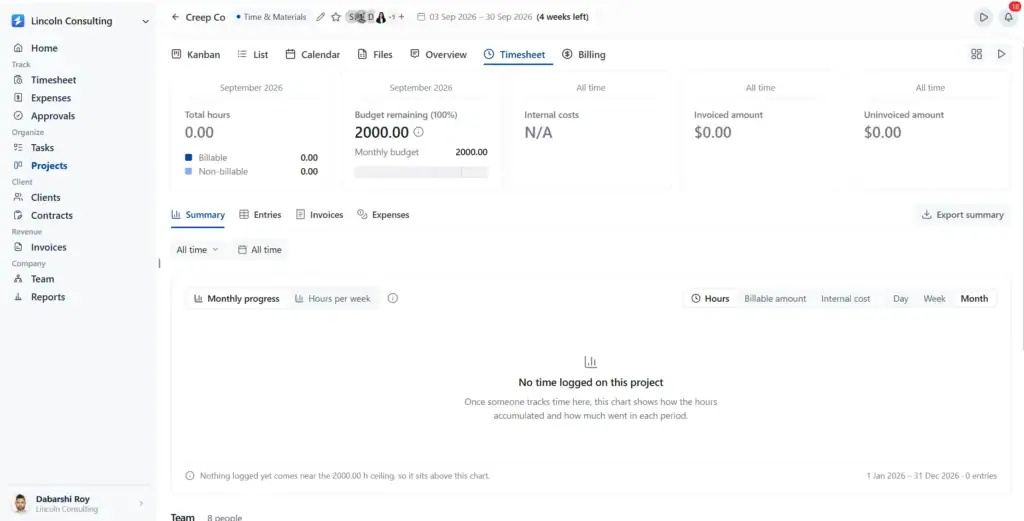
If you’re tired of managing projects across multiple disconnected tools, OneSuite brings project scheduling, time tracking, timesheets, expenses, approvals, billing, team management, estimates, and reporting into one complete project operations platform. It helps agencies, consultants, and service businesses plan projects, organize workloads, track every billable hour, manage project costs, approve work, and maintain full visibility from project start to final payment.
Unlike traditional project scheduling tools that only focus on timelines and task deadlines, OneSuite connects the entire workflow in one place. Teams can create projects, assign tasks, set milestones, track progress, monitor team capacity, record time spent on different activities, review timesheets, manage expenses, approve submitted work, generate accurate invoices, and analyze project performance without switching between multiple applications.
With features like Timesheets, Time Tracking, Expenses, Approvals, Project Billing, Estimates, Team Management, and Reports, OneSuite helps businesses manage every stage of the project lifecycle. Managers can understand who is working on what, how resources are being used, whether projects are profitable, where delays may happen, and how efficiently the team is delivering work.
OneSuite is designed for businesses that need more than a basic scheduling tool. It combines project planning, resource management, financial tracking, and performance insights into a single platform, helping teams stay organized, improve productivity, reduce manual work, and deliver projects on time and within budget.
Key Features:
- Project Management & Scheduling: Create projects, assign tasks, set deadlines, manage milestones, and track progress from one place.
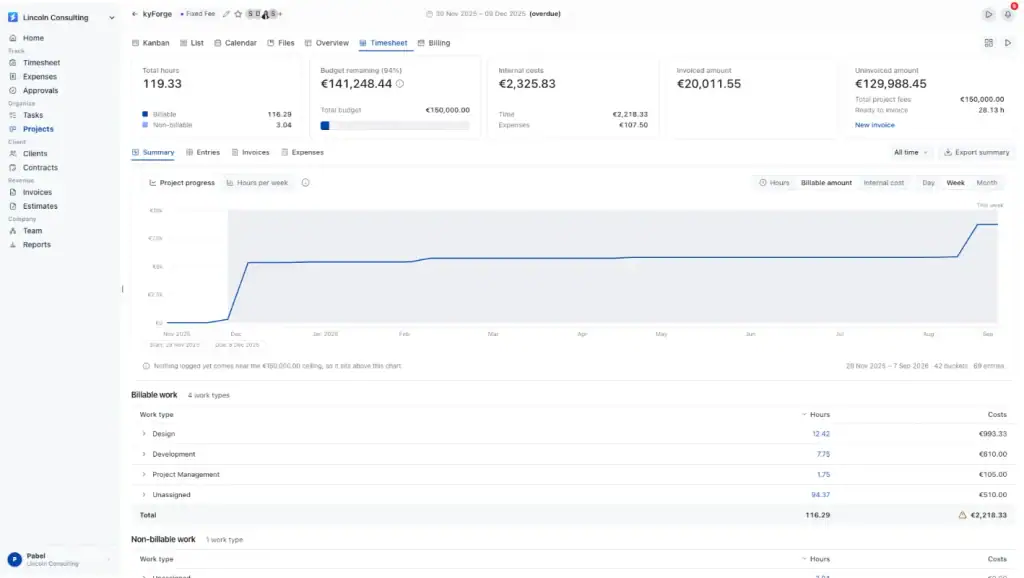
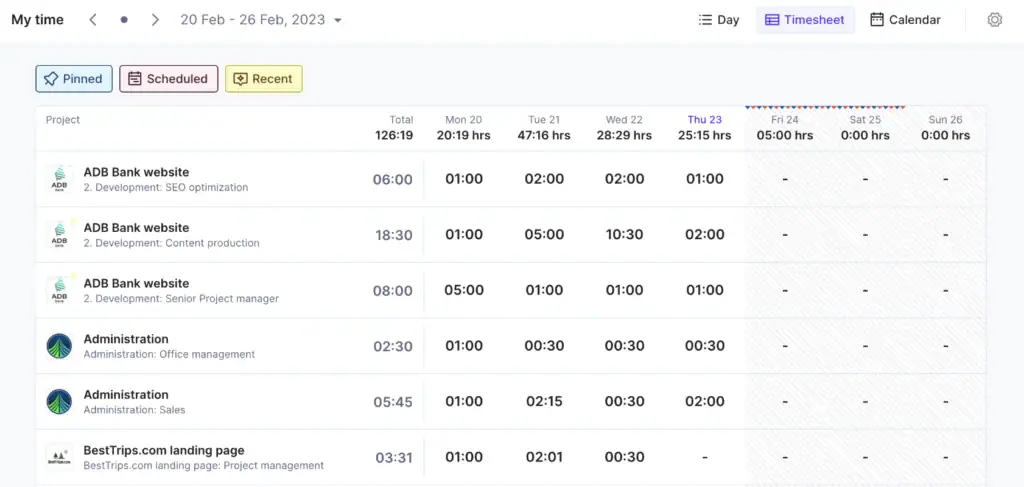
- Time Tracking & Timesheets: Track billable and non-billable hours, review team activity, and manage timesheet submissions for accurate reporting and billing.
- Project Billing: Connect project work with billing workflows to create accurate invoices based on tracked hours and project data.
- Expenses & Approvals: Record project expenses and create approval workflows to keep spending controlled and transparent.
- Estimates & Proposals: Create estimates, define project costs, and improve the transition from planning to execution.
- Team & Resource Management: Monitor team workload, capacity, hours, and performance to allocate resources effectively.
- Reports & Insights: Analyze project performance, time usage, revenue, profitability, and team productivity with detailed reports.
- Collaboration & File Management: Keep project discussions, files, and updates connected with the right work.
Pricing
- OneSuite starts at $9 per user/month with monthly billing or $7 per user/month with annual billing. A 14-day free trial is available without a credit card.
Pros And Cons
| 👍 Pros | 👎 Cons |
| Smooth white-label client portal | Newer platform with fewer integrations |
| Excellent value at $29 for 5 user | Still at early development phase. |
| Easy to use and adopt | No forever free plan |
| Unlimited projects, clients, invoices and documents |
User Review ⭐️4.8/5 G2
👍 Always improving; Great support! Thank you!
– Jacquelyn L..
👍 As any app that is in their early phase of development, Onesuite has some bugs that needs to be ironed out. But none of that them were breaking the operations. They are mostly UI related and I am already seeing them fixing them one be one.
– Raabit H.
2. ProofHub
ProofHub is a project management and collaboration tool that replaces the need for multiple separate apps to run a single project. It brings planning, task management, communication, and file sharing into one workspace, so nothing gets lost between tools. You can organize projects by team, client, or department, and customize workflows to match how your team actually operates, instead of forcing your process to fit the software.

Key Features:
- Task management: Kanban boards, Gantt charts, and Calendar view to plan and track work your way.
- Built-in communication: Chat, discussions, and task comments so conversations stay attached to the work.
- Time tracking: Log hours and pull project reports without a separate tool.
- Online proofing: Review files and get approvals directly inside ProofHub.
Pros & Cons
| 👍 Pros | 👎 Cons |
| Simple, intuitive interface with a minimal learning curve | Fewer third-party integrations than some competitors |
| Flat pricing with unlimited users | No free plan (14-day free trial available) |
| Keeps projects, communication, and files organized in one place | Limited budgeting and customization features |
Pricing:
- Essential: $45/month (billed annually) for 40 projects, unlimited users, and 15GB storage
- Ultimate Control: $89/month (billed annually) for unlimited users and unlimited projects
User Review ⭐ 4.6/5 G2
👍Everything in ProofHub feels well structured, so nothing gets lost among random tasks and projects. Everything can be categorized and seen at a glance.
— Peter I., Director, Graphic Design
👍 ProofHub became a unified command center that turned chaotic, multi-tool project management into a streamlined, transparent process, with discussions, tasks, timelines, and files all in one searchable place.
— Jun W., Structural Engineer, Design
3. Productive
Productive is one of my go-to picks for agencies because it gives a crystal-clear view of team capacity in real time. It’s intuitive, easy to use, and designed specifically for agencies that juggle multiple projects, clients, and deadlines.
What I love most is how it blends scheduling, resource management, time tracking, and budgeting all in one place so you’re not hopping between tools. Assigning work based on capacity, skills, or availability feels effortless, and it keeps billing and invoicing accurate without extra headaches. If you want to explore more options, check out our list of the best Productive alternatives.
Key Features
- Workload & timeline views: See who’s overbooked or free, and adjust instantly.
- Forecasting tool: Predict project timelines and resource availability using real-time data.
- Scheduling assistant: Suggests optimal timelines based on staff capacity and task dependencies.
- Conditional scheduling: Flexible timelines that adjust with milestones or external factors.
- Built-in time tracking & billing: Track hours for accurate invoicing and insights.
- Integrations: Dropbox, Jira, Slack, Microsoft Calendar, QuickBooks, Xero, and Zapier.
Pros & Cons
| 👍 Pros | 👎 Cons |
| Free guest accounts for clients | Roles and user permissions could use more flexibility |
| All-in-one solution: project, resource, time, and budget management | Webhooks and advanced features require higher-tier plans |
| Allocate work by skills and availability |
Pricing
- Essential: $9/user/month
- Professional: $24/user/month
- Ultimate: $32/user/month
User Review ⭐️4.7/5 G2
👍 I like that Productive suits my personal preferences on how I want to register my hours and set up my home screen. I know my colleagues prefer to use it differently than me, so the amount of customizability is enjoyable.
–Harald B.
👎 Configuring particular reports can be difficult, especially when you have to think about what specific data field is going to give you the answers you need.
–Jess T.
4. Nifty
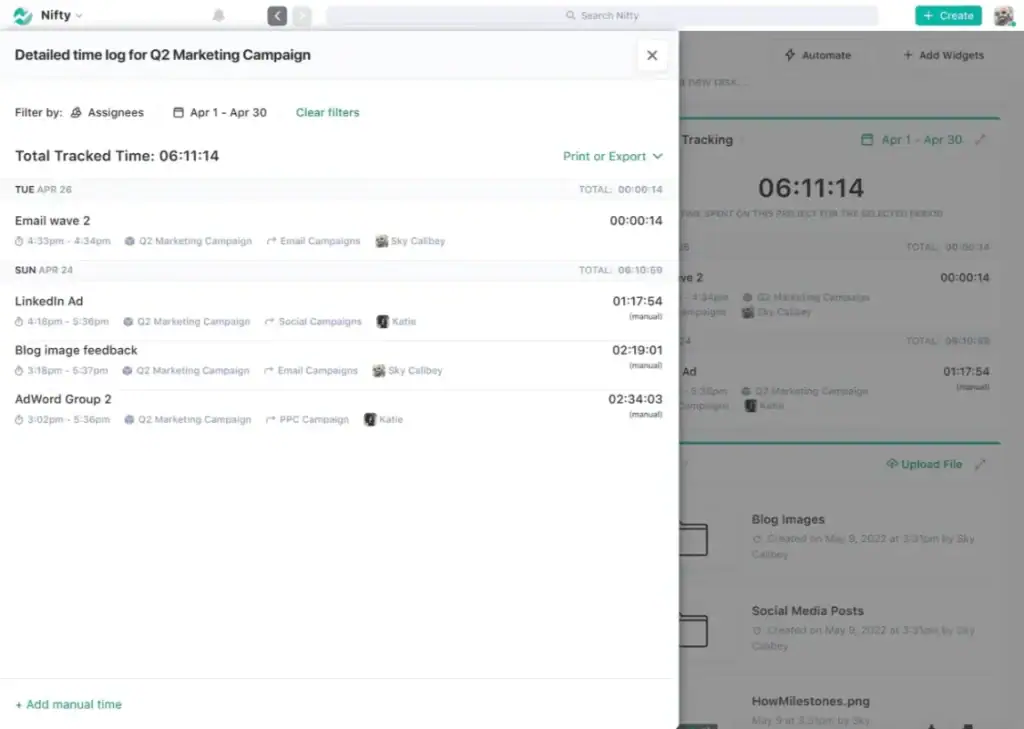
Nifty stood out as a top choice for milestone-driven teams. I appreciate how it lets you see the big picture and the small details at the same time. You can switch between a Gantt chart or a swimlane view to match your workflow, set recurring milestones, and add custom fields for extra context.
It makes planning, tracking, and adjusting projects feel effortless—no more juggling spreadsheets or losing track of deadlines.
Key Features
- Gantt charts and swimlane views for visual project tracking
- Milestones and recurring milestones with custom fields
- Task management with portfolios, forms, and reporting
- Team collaboration: in-app discussions, file sharing, and time tracking
- Integrations with Slack, Zoom, Google Drive, Jira, Asana, Trello, and more
Price
- Free – $0/month, unlimited members
- Starter – $49/month, 10 members
- Business – $149/month, 50 members
- Unlimited – $499/month, unlimited members
Pros & Cons
| 👍 Pros | 👎 Cons |
| Clean, intuitive interface that’s easy to learn | Limited storage on some plans |
| Strong milestone and roadmap focus | Support only on higher-tier plans |
| Flexible project views (Gantt & swimlane) | Some advanced features require paid plan |
| Smooth import from other PM platforms |
User Review 🌟4.7/5 G2
👍 Clean and simple interface, with great tutorials and customer support. The implementation is amazing and the day to day usage saves me so much time with my team.
–Nancy S.
👎 It didnt not provide us with voice notes, it would be great if they start adding voice notes in it as it will become easier to convey the task easily to all group members altogether
– Gunjan B.
5. monday.com
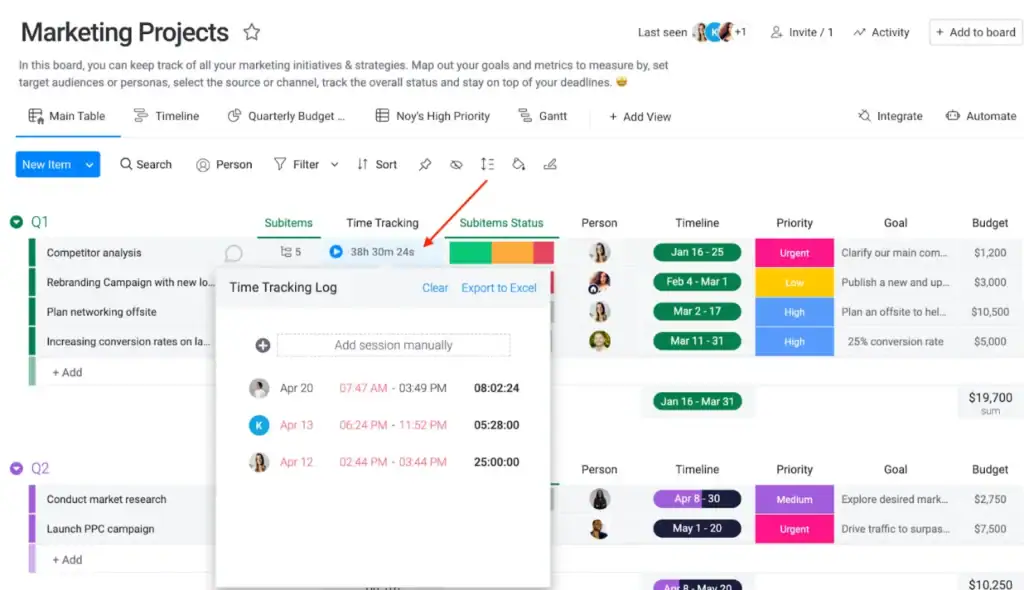
For me, monday.com feels like the perfect mix of flexibility and clarity. It’s not just a tool—it’s like having a visual dashboard of your entire project at your fingertips.
I love how I can break projects into phases, assign tasks, set dependencies, and instantly see who’s doing what. Drag-and-drop rescheduling is a lifesaver, and the timeline view gives a clear picture of overlapping tasks and deadlines. It’s hands-down one of the best scheduling software options for teams who need visibility without getting bogged down in complexity.
Key Features
- Timeline view to track tasks, dependencies, and overlaps across projects
- Multiple views: spreadsheet, Kanban, calendar, map
- Automations and triggers to reduce repetitive work
- Customizable dashboards for big-picture progress tracking
- Integrations with Slack, Teams, Google Workspace, Jira, GitHub, Trello, Dropbox, and thousands more via Zapier
Pros & Cons
| 👍 Pros | 👎 Cons |
| Intuitive visual scheduling with timelines and task dependencies | Pricing can be confusing for new users |
| Multiple views: Kanban, calendar, spreadsheet, map | Slight learning curve for beginners |
| Built-in resource management tools | Some advanced features require paid plans |
| Drag-and-drop functionality for easy adjustments | Not a traditional Gantt chart tool (limited MPP import/export) |
| Flexible dashboards for big-picture tracking | Can feel overwhelming if many boards/projects are active |
Pricing
- Basic: $12/user/month (customizable pipelines, contact management)
- Standard: $17/user/month (AI email, automations, integrations)
- Pro: $28/user/month (sales forecasting, mass email, advanced analytics)
- Enterprise: Custom (lead scoring, advanced security, enterprise automations)
User Review 🌟4.8/5 G2
👍 I thought Monday CRM was very good and offered good Security, Value for Money, Customer Support, Email, Lead Management User Interface, Tracking.
– Mark B.
👎 What I liked least about Monday CRM is that some of the more advanced features require higher-tier plans, which can add up quickly. It also took a bit of time to fully understand how to set up and optimize the workflows—there’s a learning curve if you’re new to project or CRM tools
– Kadance K.
6. Scoro
Scoro earns a spot on this list because it’s built for professional service teams that juggle clients, projects, and budgets all at once.
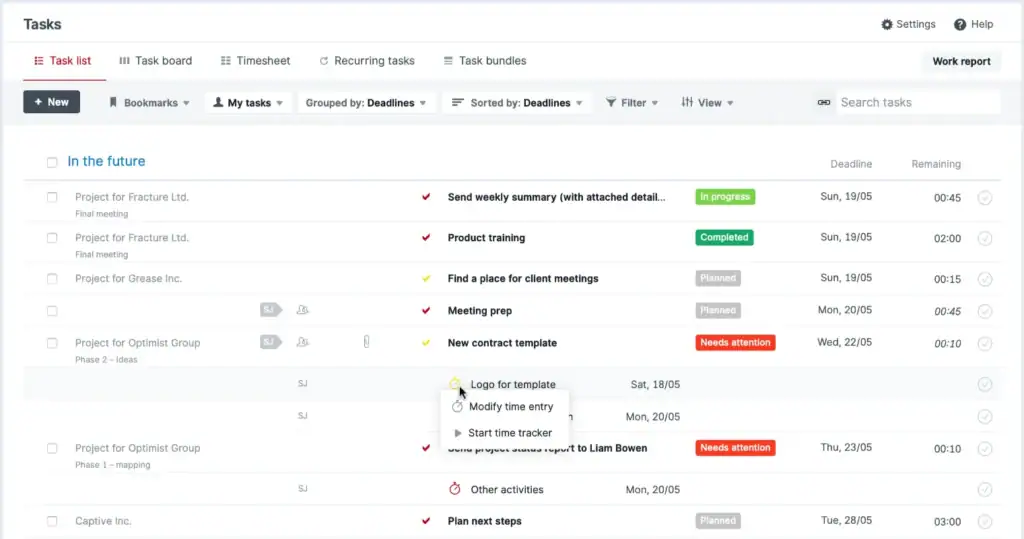
What I like most is how it combines scheduling, time tracking, and financial management in a single system.
Instead of hopping between apps, you can plan your project timeline, assign resources, track hours, and even manage invoices—all without losing sight of deadlines. Its Gantt charts make it easy to see what’s critical, while templates let you reuse schedules for recurring projects.
Key Features
- Visual Gantt charts for planning timelines and resources
- Time tracking for billable and non-billable hours
- Quote, invoice, and retainer management
- Project margin and profitability tracking
- Customizable templates for recurring projects
- Integrations with popular tools like Slack, Jira, QuickBooks, Asana, and Google Calendar
Pros & Cons
| 👍 Pros | 👎 Cons |
| Perfect for professional services like agencies and consultancies | Can feel complex at first for new users |
| Templates save time for recurring projects | Some mobile features are limited |
| Combines project scheduling and finance in one platform | Advanced features may require learning time |
Pricing
- Core – $23.90/user/month
- Growth – $38.90/user/month
- Performance – $59.90/user/month (Recommended)
- Enterprise – Custom pricing/user
User Review 🌟4.5/5 G2
👍 The project collaboration feature is awesome. It has a built-in system that assist ultimately. It makes task management as easy as 1,2,3. It gives you more free time.
– Camencia F.
👎 The system is just so confusing to use, I was new to the business and to Scoro and spent my first few months learning how to use the system rather than learning my job.
–Rosie L.
7. Resource Guru 4.6
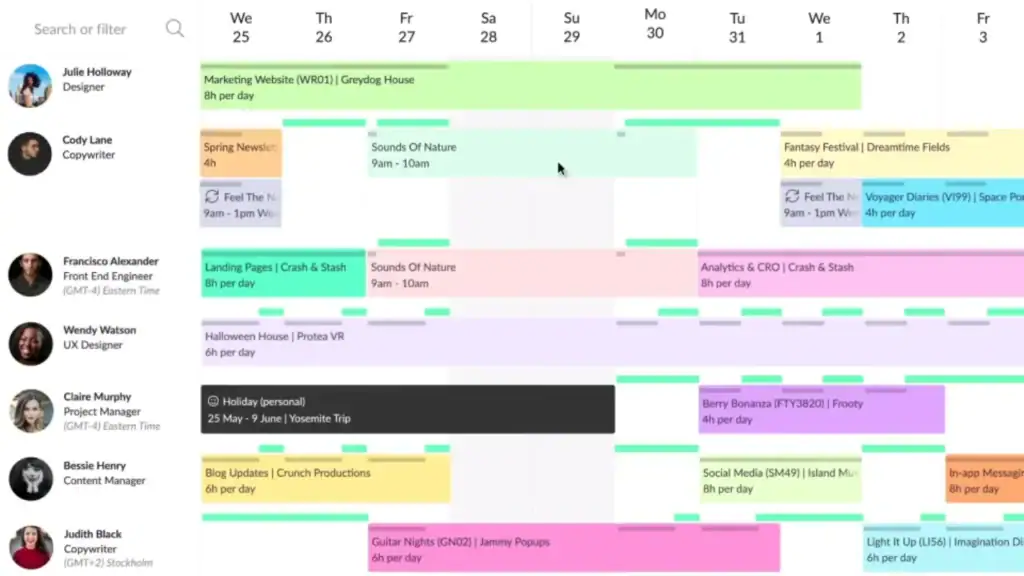
Resource Guru is my go-to tool whenever I need complete visibility over both people and physical resources. I’ve used it with multi-project teams, and what I love most is how easy it is to see who’s booked, what’s available, and when—all on a clean, color-coded calendar.
No more last-minute scrambling to adjust schedules or worrying about double-booked team members. The leave management automatically accounts for vacations, which has saved me more than a few headaches. Plus, its capacity planning and forecasting features let you anticipate workload bottlenecks before they impact delivery.
For teams juggling multiple projects—especially in agencies, IT, or construction—this tool keeps everything clear, simple, and actionable.
Key Features
- All-in-one scheduling: Manage people, equipment, and meeting rooms in one place.
- Drag-and-drop calendar: Quickly move tasks or bookings without breaking anything.
- Timesheets & reports: Track hours and see billable vs. non-billable time.
- Resource forecasting: Plan ahead and prevent overloading team members.
- Meeting room management: Book rooms without conflicts.
- Integrations: Works with Google Calendar, Outlook, Slack, Teams, Asana, Jira, Trello, Zoom, Basecamp, monday.com, Smartsheet
Pricing plan
- Grasshopper Plan – $4.16 per person, per month – Essentials without reports
- Blackbelt Plan – $6.65 per person, per month – Standard features including timesheets and reports
- Master Plan – $10 per person, per month – Advanced security, control & support
| 👍 Pros | 👎 Cons |
| Instantly see all team members and resources | No copy-paste for resource tasks |
| Prevents double-booking with clash management | Most integrations are via Zapier, not native |
| Capacity planning & forecasting for smooth workloads | |
| Clean, intuitive interface |
User Review 🌟4.6/5 G2
👍 RG is user-friendly and easy to use. It works really well for us because schedules and people are constantly changing, and we can update appointments quickly and easily so everyone stays informed in real time.
– Helen S.
👎 I think it would be very helpful if Resource Guru had the ability to track things with my phone. I would like a tool where I can quickly timestamp things on and off, maybe a widget or something easily accessible.
– Jeffrey V.
8. Asana
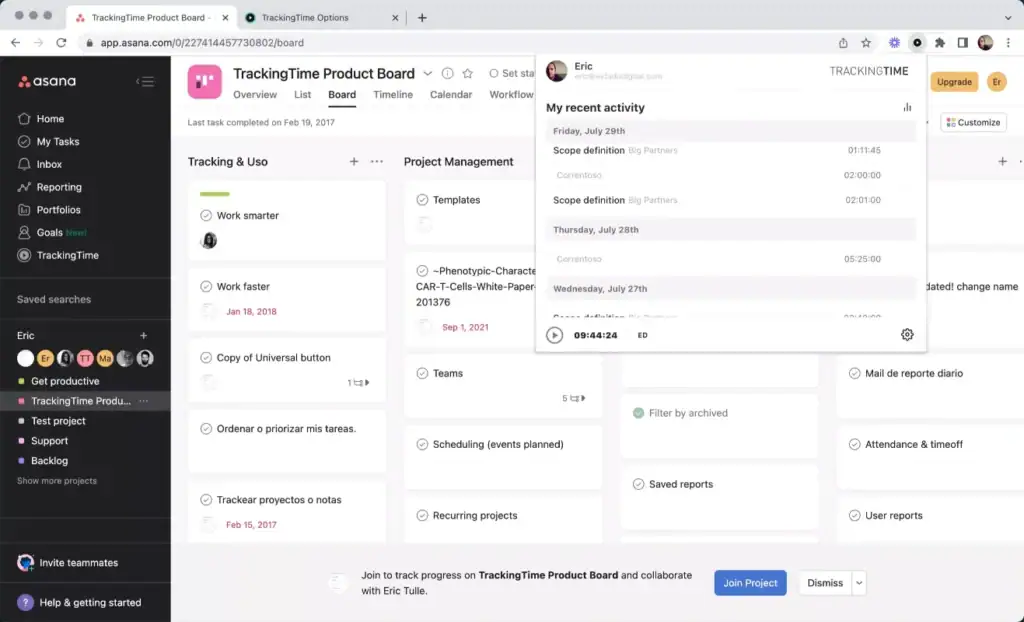
When I manage projects, I can’t afford to guess who’s busy or which task is slipping. Using time tracking alongside project scheduling lets me see everything at a glance, hours logged, deadlines, and who’s overloaded.
It’s like having a personal dashboard for my team: I can adjust timelines, balance workloads, and keep projects moving, without endless emails or stress.
Key features
- Multi-project timelines that make deadlines obvious
- Kanban boards, lists, and Gantt charts for different ways to visualize work
- Subtasks and dependencies to track the fine details
- Custom dashboards and reporting that let you see progress at a glance
- Some capacity and workload tracking on advanced plans
Pros & Cons
| 👍 Pros | 👎 Cons |
| Clear, visual project timelines | Resource planning is limited |
| Flexible views for different team roles | Workload view needs add-ons for full capacity tracking |
| Easy to organize subtasks and dependencies | Advanced features can get pricey |
| Customizable dashboards for quick insights | Large teams may need extra tools for big-picture scheduling |
Pricing
- Personal: Free — ideal if you’re testing the waters or managing a small team.
- Starter: $10.99/user/mo — adds timelines, milestones, and Asana AI Studio.
- Advanced: $24.99/user/mo — portfolio-level views and limited resource tracking.
- Enterprise / Enterprise+: Custom pricing — for teams that need automation, compliance, and complex workflows.
User Review 🌟4.4/5 G2
👍 “I like the user-friendly interface, ease of use, and pleasant ‘social network style’ flow. One of my favorite feature is the project templates.”
“Asana is a great software—it keeps things easy and clear to follow… the way it has listings and timeline helps to navigate through the activities. I also like how it tracks milestones of a project.” Software Advice
👎 “I strongly advise against using Asana. Their pricing model is deceptive, and their customer service is completely unhelpful. … I was charged an outrageous amount … they refused to give any refund … their support team offers nothing but copy-paste responses.” – a user at Reddit
9. ClickUp
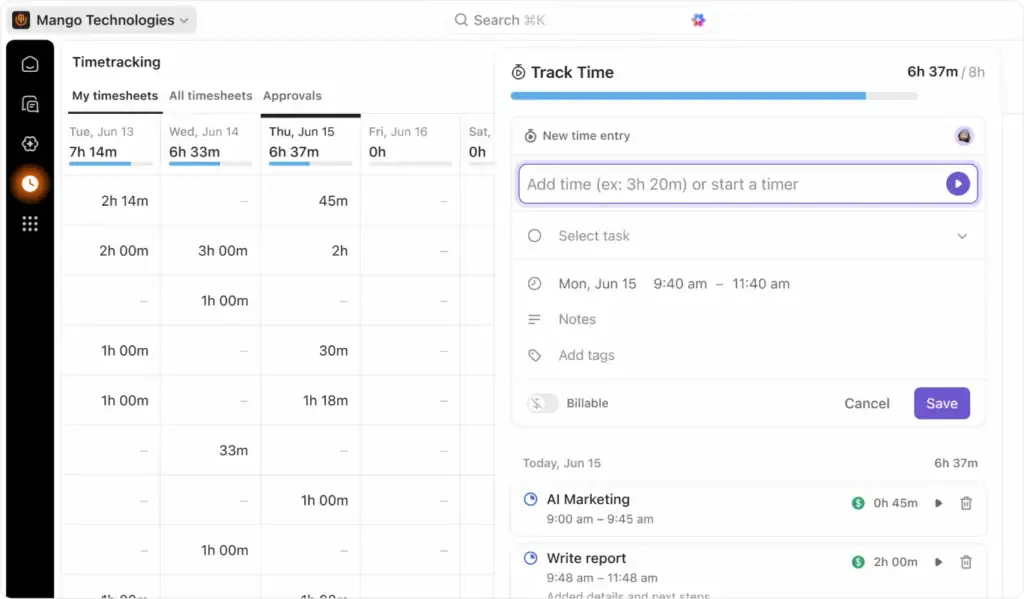
I’ve used ClickUp for several projects, and it quickly became my go-to for project scheduling and time tracking.
What I love is that it’s not just about moving tasks around—it gives you full visibility on timelines, workloads, and timesheets, all in one platform.
The customization options let me set up dashboards, views, and workflows exactly the way my team works, which is a huge time-saver.
Key features
- Customizable views: List, Board, Calendar, Gantt, and more
- Powerful automations to handle repetitive tasks
- Docs, wikis, and centralized knowledge management
- Goal tracking with measurable milestones
- Time tracking & automatic timesheet generation
- Over 1,000 integrations through native connections and Zapier
Pros & Cons
| 👍 Pros | 👎 Cons |
| Highly customizable for different workflows | Steep learning curve due to many features |
| Generous free plan with lots of functionality | Can slow down with very large projects or many users |
| Integrates with 1,000+ tools | Some advanced automations take time to master |
| Combines scheduling, time tracking, docs, and goals in one platform | Feature-rich interface can feel overwhelming at first |
Pricing
- Free Forever: $0
- Unlimited: $7/user/month
- Business: $12/user/month
- Enterprise: Custom quote
User Review 🌟4.7/5 G2
👍 “ClickUp is an absolutely killer system. Bang for buck and power to ease-of-use, I’ve never seen anything else come close.”
– Anonymous user on G2.
👎 “Can feel overwhelming for beginners due to feature depth.”
– Reddit user.
10. Wrike
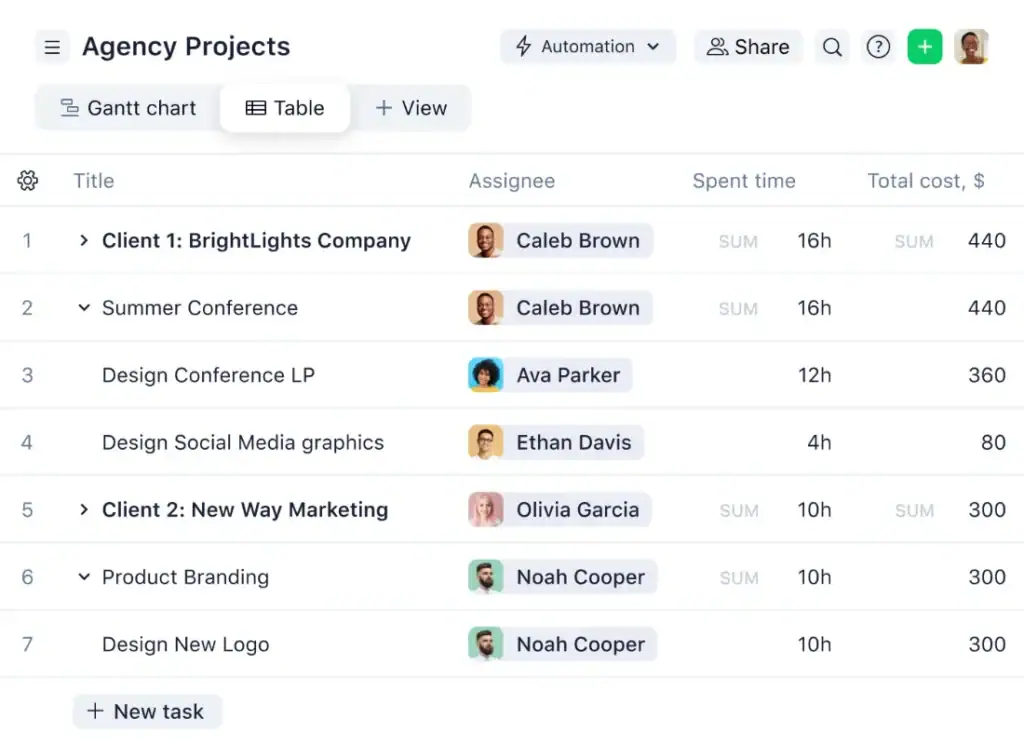
Wrike isn’t just another project scheduler—it’s a time-tracking superstar. It gives teams a clear view of where every hour goes, making sure nothing slips through the cracks. If you want to see your projects and team workload at a glance and actually act on the data, Wrike delivers without extra fuss.
Teams love using it to manage resources, approve timesheets, and turn tracked hours into insights that help projects stay on time and on budget.
Key Features
- Log, review, and approve timesheets for individual team members.
- Track billable hours, non-billable tasks, and overtime automatically.
- Advanced reporting & integration with finance systems for invoicing and payroll.
- Resource management & capacity planning to maximize productivity.
- Kanban boards, Gantt charts, and automation-powered templates for agile or hybrid workflows.
- Shared calendars & dashboards for real-time updates across the team.
Pros and cons
| 👍 Pros | 👎 Cons |
| Strong time tracking with approval workflows | Can feel overwhelming for first-time users |
| Detailed resource and capacity planning | Steep learning curve for advanced features |
| Customizable dashboards and reports | Some features require setup before full use |
| Scales well for teams of any size | Interface may feel cluttered initially |
User Review 🌟4.2/5 G2
👍 Wrike feels like a complete package when it comes to project management and work collaboration tools. On top of that, it’s by far one of the most leading-edge options in terms of AI and innovation, helping revolutionize how we work every day.
– G2 review
👎 It can be a bit overwhelming to keep track of all the different windows and areas of the system. A little too complex when many different teams are involved.
– G2 review
💡 Read aslo: Wrike Alternative: 9 Powerful Tools for Project Management
Common Project Scheduling Challenges—and How Smart Tools Solve Them
1. Resource Conflicts & Overallocation
Managing people across multiple projects can get messy. Teams often double-book resources, causing bottlenecks and burnout.
Without a central view of capacity, it’s easy to overload a few “go-to” team members. Modern tools like Onesuite show who’s full and who has bandwidth, suggest task adjustments automatically, and match work to the right people.
The result: deadlines stay intact, and your team doesn’t feel stretched to breaking point.
2. Missed Deadlines & Lack of Visibility
Trying to track progress across spreadsheets and siloed emails often means managers are constantly reacting instead of preventing delays.
Tasks slip quietly until it’s too late. Scheduling software fixes this with Gantt-style timelines, automated alerts, and progress dashboards, giving a live view of all tasks and dependencies.
From experience, switching to a shared tool instantly highlighted slipping tasks, letting us course-correct before clients noticed.
3. Cross-Team Collaboration Gaps
Different teams working in separate tools, calendars, or priorities can clash, causing surprises and handoff delays. Shared timelines and multi-team workspaces bring everyone onto the same page, while calendar sync accounts for time zones, holidays, and part-time schedules.
Once we adopted this approach, miscommunication between design, marketing, and development almost vanished. Everyone knew what to do, when, and how it connected to the bigger picture.
4. Client Communication & Reporting
Clients often feel out of the loop when updates are manual, inconsistent, or buried in email threads. Modern scheduling tools provide client dashboards, automated reports, and timeline exports, giving clear, visual updates instantly.
After using these features, our clients knew exactly where projects stood, and our team spent less time writing updates and more time delivering work.
The right project scheduling tool isn’t just software—it’s a co-pilot. It provides visibility, prevents overbooking, keeps teams aligned, and builds client trust.
Personally, adopting these tools transformed our workflow: fewer fires to put out, smarter resource planning, and a team that actually knows what’s coming next.
Use OneSuite to Schedule Projects Without the Chaos
Managing projects becomes challenging when tasks, deadlines, team updates, time tracking, and billing are spread across multiple tools. OneSuite brings everything together in one place, helping teams plan projects, manage workloads, track progress, and keep work organized from start to finish.
With OneSuite, you can create project schedules, assign tasks, set deadlines, monitor team capacity, and track project progress in real time. Features like Timesheets, Time Tracking, Approvals, Expenses, and Project Billing help teams maintain accurate records and keep projects financially controlled.
OneSuite also gives managers better visibility with Estimates, Team Management, and Reports, making it easier to understand resource usage, project performance, and profitability.
Instead of chasing updates across different platforms, OneSuite helps teams stay aligned, reduce manual work, and deliver projects on time with a clearer and more connected workflow.
FAQs
What is the difference between project management software and project scheduling software?
Project scheduling software focuses on planning timelines, assigning tasks, managing deadlines, and tracking progress. Project management software includes scheduling features along with collaboration, budgeting, reporting, document management, and workflow automation.
Is project scheduling software useful for small businesses?
Yes. Small businesses can use project scheduling software to organize tasks, manage team workloads, track billable hours, and improve project delivery without needing complex systems. Tools with simple workflows help small teams stay organized as they grow.
Can project scheduling software replace spreadsheets?
Yes. Project scheduling software replaces spreadsheets by providing real-time updates, automated calculations, task dependencies, workload visibility, and centralized project information. Teams can avoid manual updates and manage projects more efficiently.
Where can I find project scheduling software with a free trial?
You can find project scheduling software with free trials from most providers. A good trial should include features like task planning, timelines, team collaboration, time tracking, and reporting.
What are the benefits of using project scheduling software for managing timelines?
Project scheduling software helps teams organize tasks, track deadlines, manage resources, and identify delays early. It improves visibility, communication, and project delivery.
Start exploring OneSuite today
No credit card is required